
Chapter 12 · 12.2
Database users, privileges and passwords
Watch it in a short video
Your website doesn't log in to the database with your DA details, but with a separate database user. When you create a database, DirectAdmin immediately creates one for you (see Creating a database). You can also create additional users, change a user's password, or give a user access to a second database.
The users of one database
In the Databases List, click Manage next to the database. You'll land on the Manage Database page. Under User Access (1) you'll see which users have access to this database, and with which privileges (for example Full access).
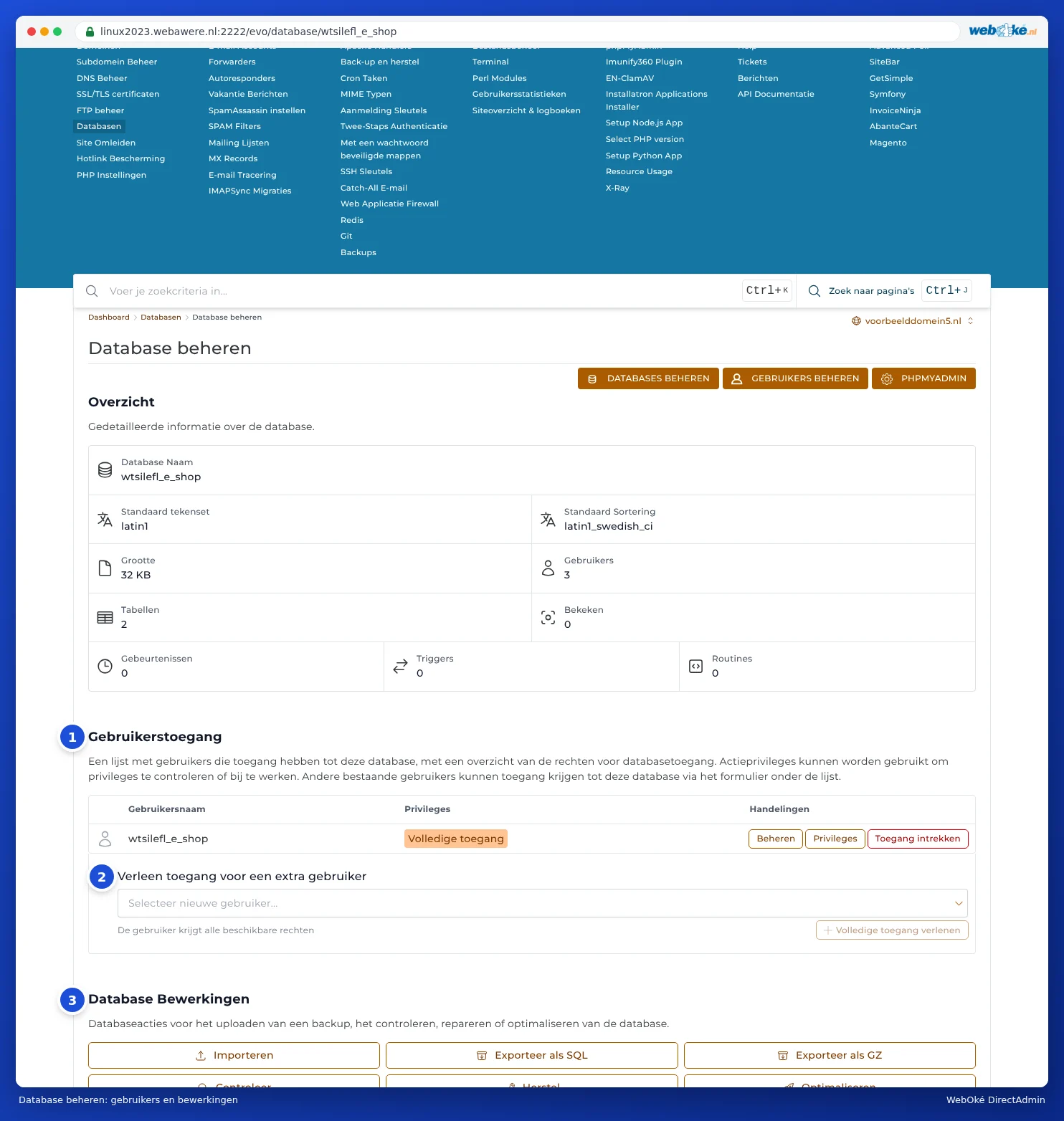
Each user has three buttons:
- Manage: the user's page, with the password, the databases and the hosts they're allowed to connect from (see below).
- Privileges: choose exactly what the user is allowed to do, for example read only (SELECT). For a regular website, leave this on full access.
- Revoke Access: the user can no longer access this database. The user itself keeps existing.
With Grant access for additional user (2) you give an existing user access to this database as well. Choose the user and click Grant full access.
All users: Manage Users
At the top of Databases, click MANAGE USERS. You'll see all the database users in your package, with in the Allowed Hosts column which computers they're allowed to connect from. At the bottom, under Create User, you can create a new user.

After creating it, you'll get the message User created, with the new user's details. Save the password straight away.
Please note: A new user doesn't have access to anything yet. Afterwards, give them access to a database: on the user's page under Grant access to additional database, or on the database itself via Grant access for additional user.
Changing the password of a database user
- Click MANAGE USERS and then click Manage next to the user. You'll land on the Manage User page.
- Under Password Management (1), enter a new password and click CHANGE PASSWORD.
- Immediately also update the password in your website's configuration file. For WordPress, that's wp-config.php, the line with DB_PASSWORD. You can edit that file in File Manager (see Showing and editing hidden files such as .htaccess).
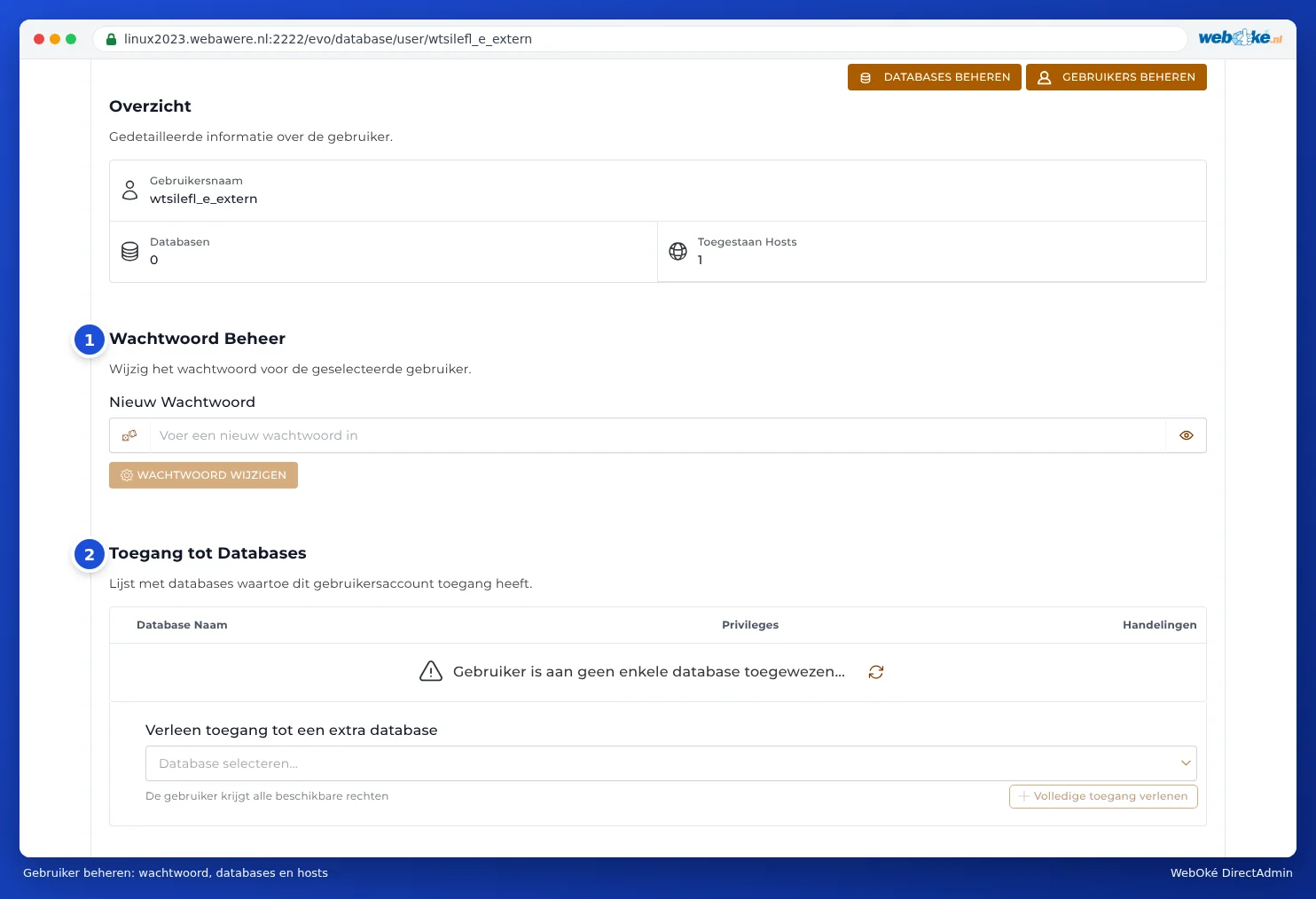
On the same page, under Access to Databases (2), you'll see which databases the user has access to, and below that, under Allowed Hosts, which computers they're allowed to connect from (see Connecting to your database from outside (Access Hosts)).
As long as the new password isn't in your website's configuration, your website can't reach the database and visitors will see an error message. So do both steps quickly, one after the other.
Where can I find the details of an existing website?
Can't remember which database and user your website uses? Check the website's configuration file:
| Software | File | What are you looking for? |
|---|---|---|
| WordPress | wp-config.php | DB_NAME, DB_USER, DB_PASSWORD, DB_HOST |
| Joomla | configuration.php | $db, $user, $password, $host |
| PrestaShop | app/config/parameters.php | database_name, database_user, database_password |
Tip: Use a separate database and a separate user for each website. If one website gets hacked, the attacker won't be able to access the databases of your other websites as well.