
Chapter 10 · 10.4
After the move: MX Records and your devices
Has your mail been copied? Then new mail needs to start arriving at WebOké from now on, and your computer and phone need to work with your new mailbox. Here's how you finish off the move.
Step 1: new mail to WebOké
Where mail for your domain arrives is determined by the MX Records in your domain's DNS (see MX records: where does your e-mail arrive?). How you set these up correctly depends on your situation:
- You're moving your domain to WebOké. In that case, your nameservers move to WebOké and the MX Records are set correctly straight away. You don't need to do anything. It's still a good idea to copy your mail just before the move, and again afterwards.
- Your domain stays with another provider, but mail comes to WebOké. In that case, change the MX Records with that provider so they point to your package's server. You'll find the value you need in DirectAdmin under MX Records (1).
- Your domain and DNS are already with WebOké. In that case, the MX Records are already set correctly. Check this under MX Records.
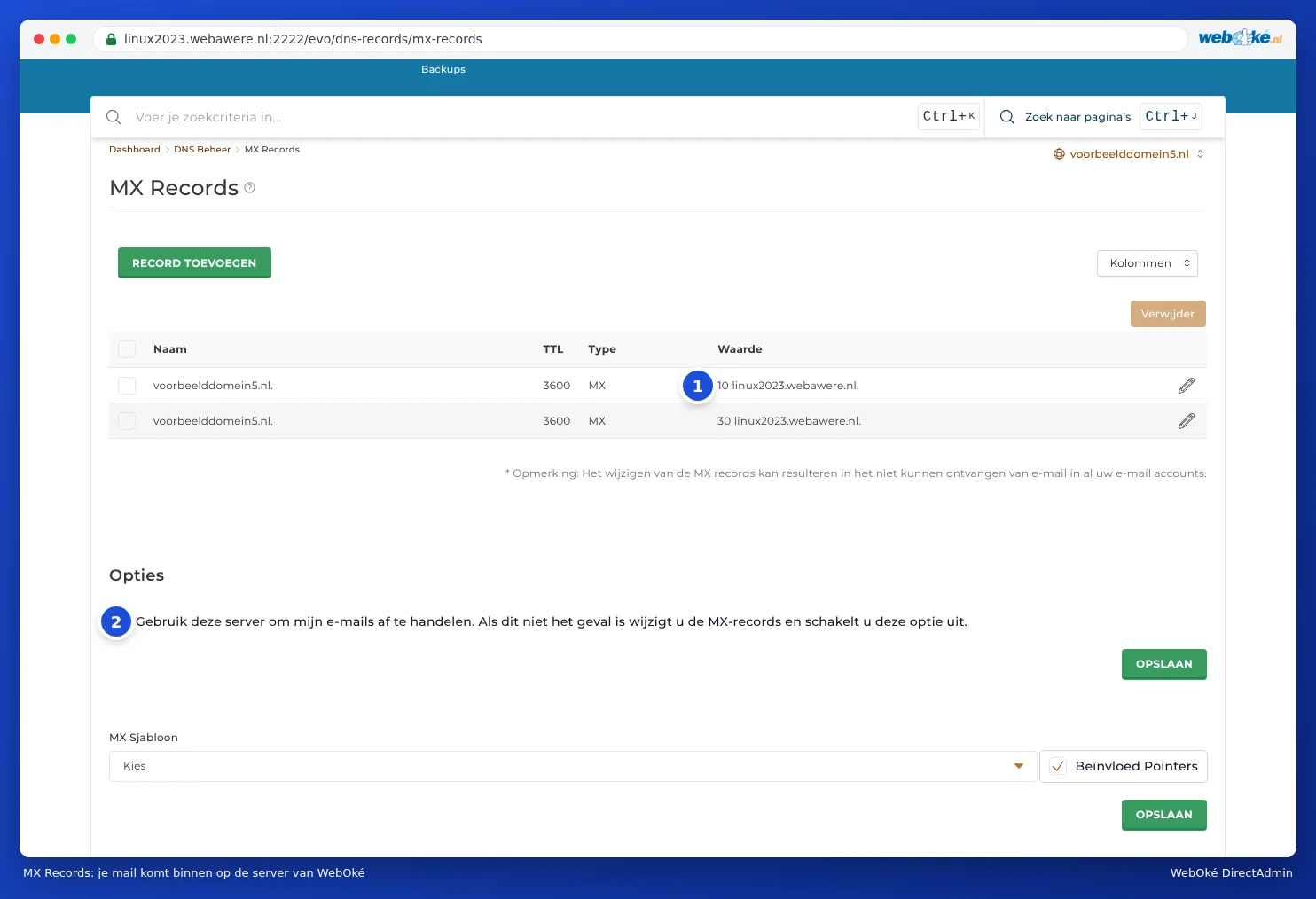
Please note: At the bottom of MX Records you'll find the option Use this server to handle my E-Mail (2). If your mail arrives at WebOké, this needs to be switched on. Only switch it off if your mail arrives with another provider, such as Microsoft 365 or Google Workspace (see Email with Microsoft 365 or Google Workspace, website with WebOké).
A change in the DNS isn't known everywhere straight away. During this transition period, mail may still arrive at your old provider (see When does a change take effect? Waiting time and TTL). That's why you copy again a day later.
Step 2: copy once more
Run the move again a day after changing the MX Records or transferring your domain, in My WebOké (see Migrating email via My WebOké) or in DirectAdmin (see IMAPSync Migrations in DirectAdmin). Mail that has already been copied is skipped. Only the latest new messages are added.
Step 3: set up your devices
Set up your mailbox with WebOké on your computer, phone and tablet. Chapter 8 covers this per program, with all servers and ports in All settings at a glance: servers, ports and security. A few tips:
- Choose IMAP, so your mail is the same on all your devices (see IMAP or POP3: what's the difference?).
- Add the mailbox with WebOké as a new account. Then remove the old account from your mail program, so you don't accidentally keep sending mail via your old provider.
- Did you see an incorrect password message on your old account? Remove the old account straight away. A device that keeps trying to log in to our server with an incorrect password can cause your IP address to be temporarily blocked (see Solving login problems).
- Were you using POP3 and is there still mail stored only on your computer? Drag those folders in your mail program to your new IMAP mailbox.
Step 4: check and cancel
- Send a test email to your own address from a different address, for example from your phone via 4G or a free mail service. Does it arrive in your mailbox at WebOké?
- Send an email from your new mailbox to another address. Does it arrive properly, and not in spam? If not, read My mail ends up in the recipient's spam folder.
- If everything works well for a few weeks, cancel your old mailbox. Until then, your old mail will also remain there.
Tip: Are you moving your website too? Then also read My domain isn't working yet after a transfer or change and Testing my website before the domain has moved.