
Chapter 6 · 6.11
Having a PHP upgrade done
Is your website still running on an old PHP version and does it break as soon as you choose a newer version? Then you can order the PHP upgrade from us. We'll make your website compatible with a current PHP version. If it doesn't work out, you'll get your money back.
Where do you find it?
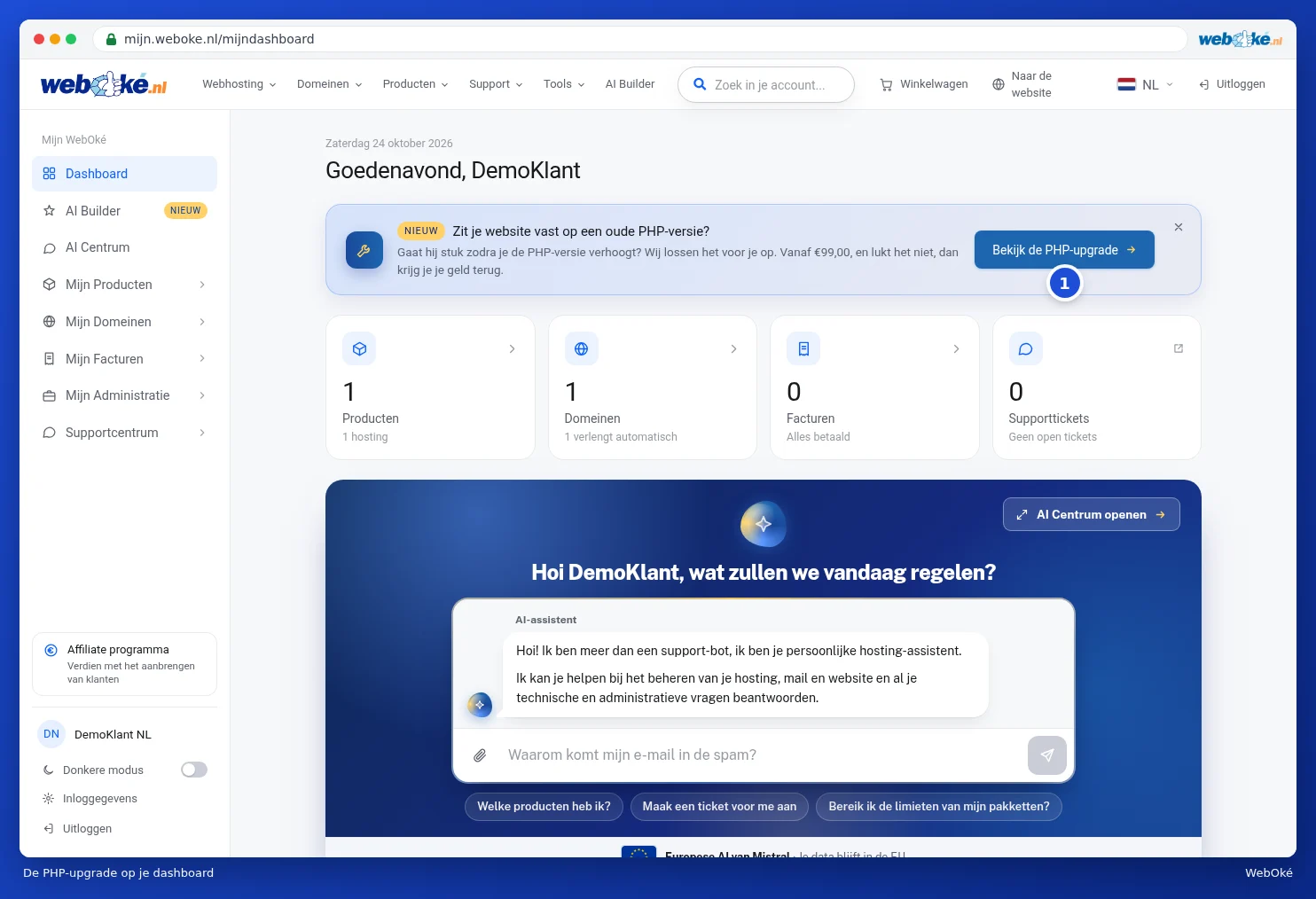
On your dashboard in My WebOké, you'll see a notice Is your website stuck on an old PHP version? with the button View the PHP upgrade (1). On the website, you'll find it in the menu under Products, under PHP upgrade.

How it works
- You request it: you pay in advance and give us the information we need.
- We get to work: on a copy, your website stays online.
- We test your website: we check the site and the error log.
- You take a look and approve it: if it didn't work, you'll get your payment back.
Requesting it
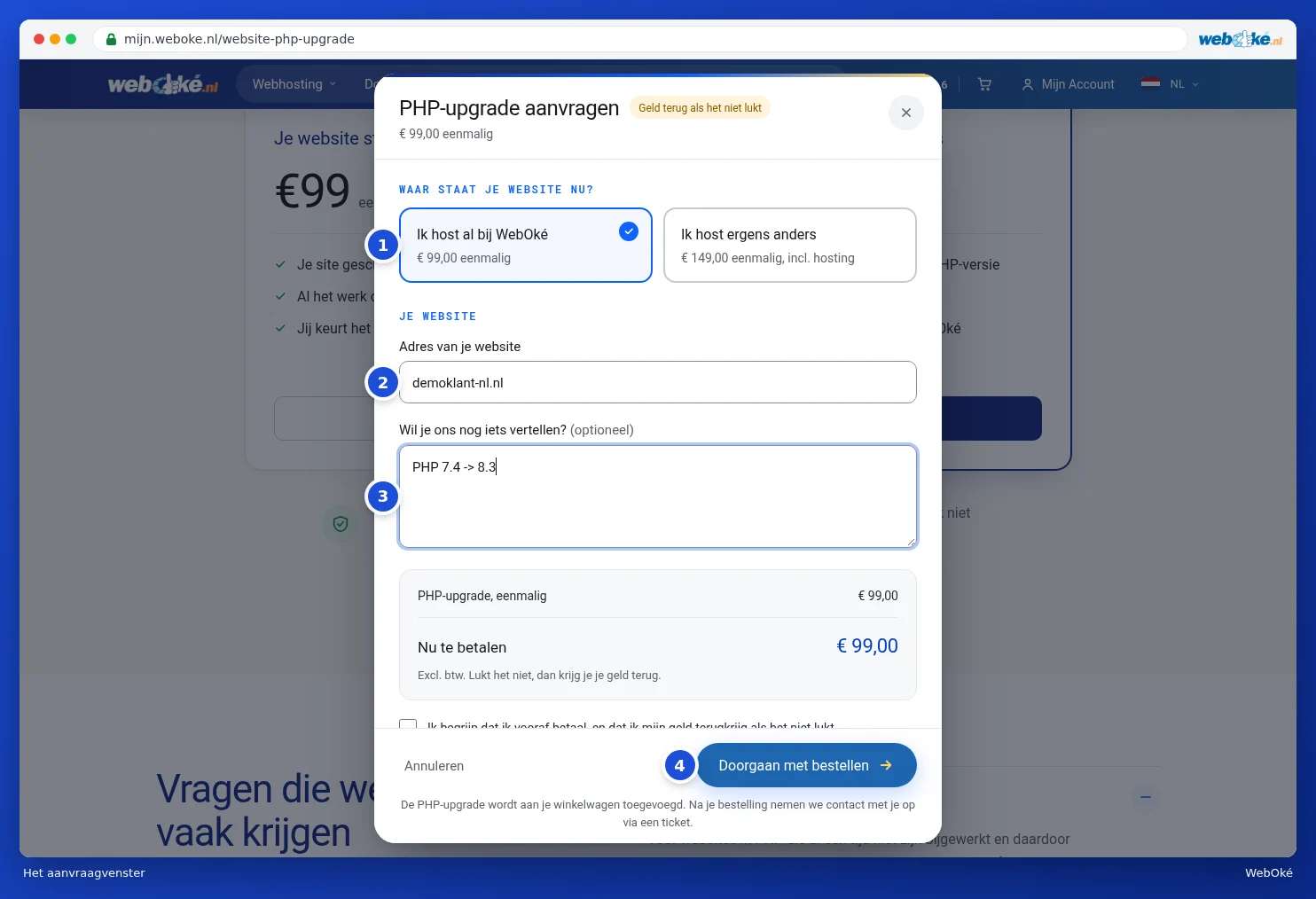
- Choose your situation on the page: Your website is already with WebOké (1) or Your website is hosted elsewhere (2). In the second case, a year of WebHost Two is included, we move your domain for free and we move your website for you. Click Request.

- The Request a PHP upgrade window opens. At the top, you can still change your choice (1).
- Under Address of your website, enter your website (2). If you host elsewhere, also enter which hosting provider your website is currently with.
- Under Anything else you'd like to tell us? (3), you can, for example, state which PHP version you're currently using, what goes wrong with a newer version or which parts are important. This isn't mandatory.
- Tick the box to confirm you understand that you pay in advance and get your money back if it doesn't work out.
- Click Continue ordering (4). The PHP upgrade goes into your shopping basket and you pay as with any order, see Review, confirm and check out.
After your payment, we'll contact you through a ticket. That's where we'll arrange the rest. You can follow your tickets in the support centre, see Tracking, replying to and closing your tickets.
Tip: do you just want to choose a different PHP version yourself? You can do that in DirectAdmin, see the DirectAdmin manual. The PHP upgrade is meant for when your website stops working after that.