
Chapter 1 · 1.3
My WebOké at a glance
My WebOké is your personal customer area. Here you manage everything you have with us: your hosting packages, domains, email, invoices and your details. You can get there via My Account at the top right of the website, or directly via my.weboke.nl. You can read how logging in works in Logging in to My WebOké.
You automatically get an account as soon as you place your first order. You then set your own password via the link in the welcome email, see After your order: tracking delivery and the welcome email.
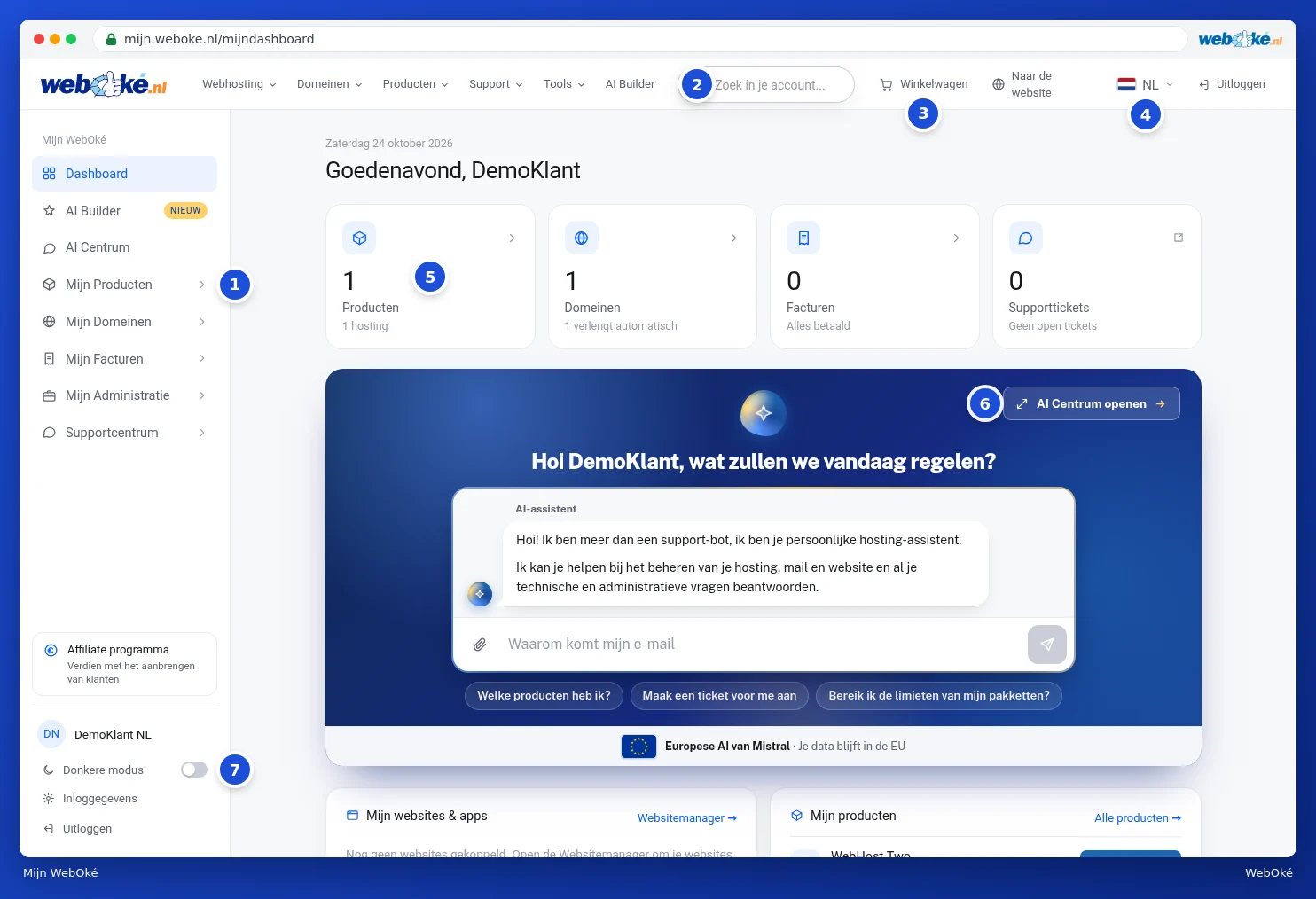
What do you see where?
- The menu on the left (1). Here you'll find all parts of your account. An arrow indicates a submenu.
- The search bar (2). Type, for example, a domain name or an invoice number and you'll jump straight to it.
- Cart (3). This takes you to your cart on the website, for example if you want to order something extra.
- Language (4). Switch the language of My WebOké here.
- The tiles (5) showing the number of products, domains, open invoices and support tickets. Click a tile to go to that section.
- The AI assistant (6). Ask your question here, or open the AI centre for your previous conversations. See The AI assistant: what can it do for you?.
- Dark mode (7) and below that Login details and Log out.
At the top right you'll also find To the website and Log out. At the top you'll also find the website's menu, so you can view a product or domain directly from My WebOké.
The parts of the menu
| Menu | What do you manage there? | Read more |
|---|---|---|
| Dashboard | The overview you see after logging in. | The dashboard |
| AI Builder | Having your website built by AI. | AI Builder: having your website built for you |
| AI centre | Your conversations with the AI assistant. | The AI centre and your conversations |
| My Products | Your hosting packages, DirectAdmin, the Website manager, email migration and backups. | Your product overview |
| My Domains | Your domains, DNS, redirects, domain contacts and the migration centre. | Your domain overview |
| My Invoices | Your invoices, your credit balance and direct debit. | Viewing and downloading your invoices |
| My Administration | Your details, contacts, login details, users and received emails. | Changing your details and invoice address |
| Support centre | The knowledge base, the guides, tickets and Am I blocked? | The support centre |
Which parts you see depends on your account. If you've been invited by someone else as a user, you'll only see what the owner has given you. See Inviting users and setting permissions.
Tip: press Ctrl + K (on Mac Cmd + K) for the quick menu. Type a few letters of the page you're looking for and press Enter. More in The menu, search bar and quick menu (Ctrl+K).
The first time you log in, My WebOké offers a short tour of the main sections. You can skip this and start it again later, see Language, dark mode and the tour.