
Chapter 2 · 2.4
Setting up your domain: nameservers, linking to your package and the owner
For every domain you order, you set up three things: the nameservers, which package the domain is linked to, and who becomes the owner. You do this in the Set up your domains window. In most cases, you can leave everything as it is.
The window opens when you click Continue ordering next to a domain you searched for, or when you click the pencil icon or a quick button next to the domain in your shopping cart.
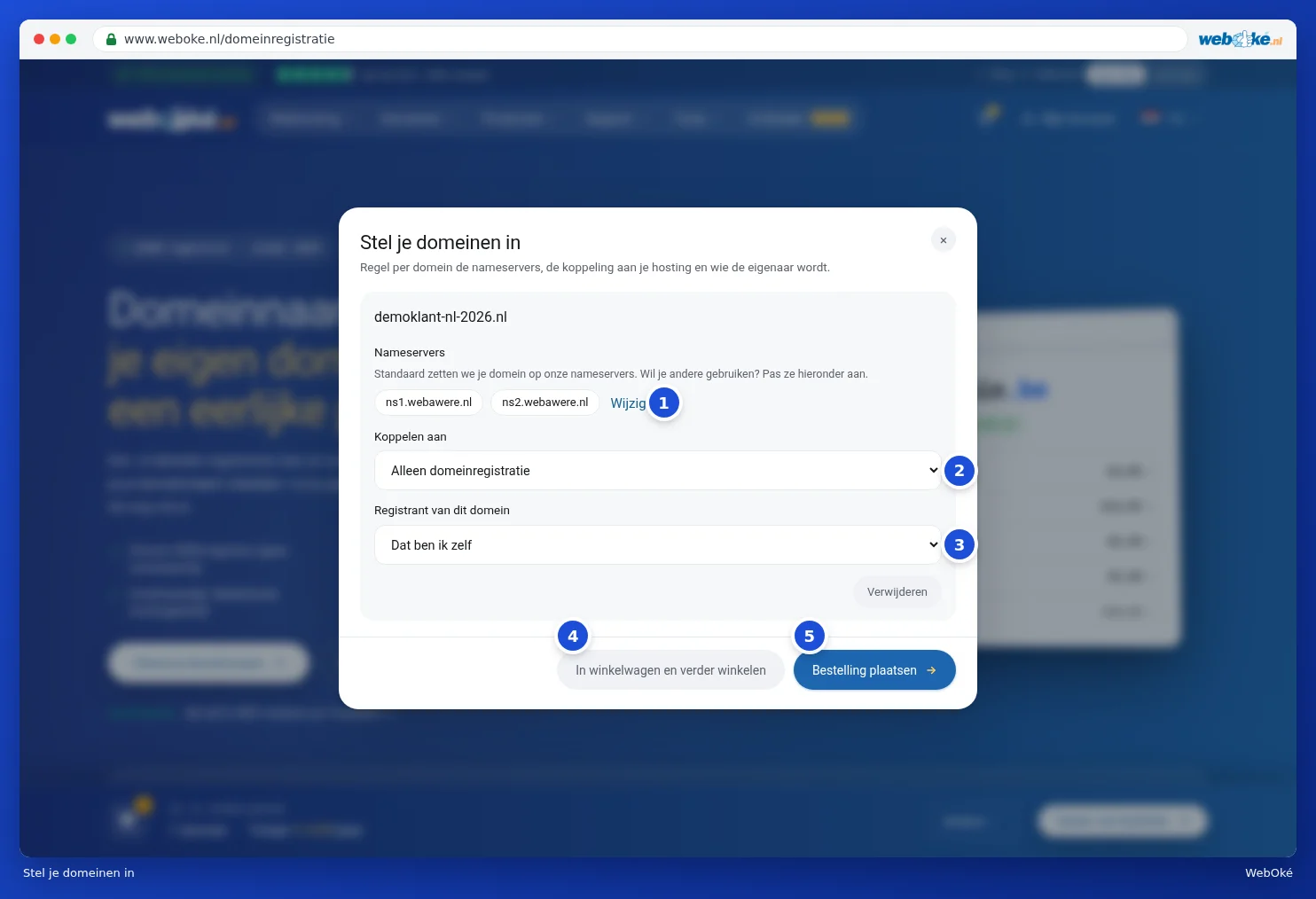
Nameservers
The nameservers determine where the DNS of your domain is managed. By default we point your domain to our nameservers. That is almost always the best choice: your website and email with WebOké then work straight away, and you manage the DNS in My WebOké.
Want to use other nameservers, for example because your website runs elsewhere? Then click Change (1).

- Enter your own nameservers in the fields (1), one per field.
- Do you have more than two? Click Add another nameserver (2).
You need at least two nameservers. We check them before saving them. You can also change the nameservers later, see Edit nameservers.
Linking to your package
At Link to (2), you choose which hosting package the domain belongs to. Choose the package from your shopping cart, and your website and email will run on this domain. If you choose Domain registration only, you only register the name, without hosting.
If you are logged in and already have a package with us, you will also see the Your existing packages group. If a package is full, you will see next to it what an upgrade costs. You can also link a domain to a package later, see Domains per package and moving a domain.
The owner of the domain
At Registrant of this domain (3), you choose who becomes the owner of the domain. By default this is That is me: the details you enter when ordering will then be registered to the domain.
Does the domain need to be registered in someone else's name, for example your association or a client? Then choose Add a new contact and enter the owner's details.

If you are logged in, you can also choose from the contacts you already have here. Some extensions require extra details from the owner. Those fields will then appear automatically. More about domain contacts in Domain contacts and changing the owner.
Saving
At the bottom of the window, you choose how to proceed:
- Add to cart and keep shopping (4): your settings are saved and you can keep browsing the site.
- Place order (5): your settings are saved and you go to your shopping cart. You have not ordered or paid for anything yet at this point.
With Delete, you remove the domain from your shopping cart. If you close the window with the cross, your changes will not be saved.