Skip to content

Cookie settings

Choose which kinds of cookies you allow. You can change your choice at any time via Cookie settings at the bottom of every page. Privacy statement

Necessary

Always on

Needed to log in, keep your cart and remember your choices. These are always on.

Which cookies?
  • weboke_sessie, weboke_klant, weboke_remember: your session and staying logged in
  • weboke_basket: your cart
  • wkBtwIncl: showing prices with or without VAT
  • wok_cookies: your cookie choice, 12 months

Measures which ad leads to a visit or order, so we do not pay for ads that do nothing.

Which cookies?
  • Google Ads via Google Tag Manager (_gcl_au, _gcl_aw), up to 90 days
  • OpenAI Ads, ads in ChatGPT
  • wok_aff: which partner referred you to us (affiliate programme), 60 days

All servers have been updated and are protected against the recent PHP vulnerabilities. Still seeing an older version number, such as 8.3.35? That is correct: the security fix is included, only the version number was not changed by CloudLinux.
4.6

Country and language

Each country has its own site, with prices and VAT for that country.

View

A tour of the Euro-Office screen

The Euro-Office screen is set up just like you know from Word and Excel. Let's go through the different parts.

The Euro-Office screen with numbered parts
The parts of the screen
  1. Tabs. File, Home, Insert, Draw, Layout, References, Collaboration, Protection and View. Each tab has its own buttons.
  2. Toolbar. The buttons for the selected tab. On Home, for example, you'll find font, bold, italic, alignment, lists and styles.
  3. The document. This is where you type and edit.
  4. Left sidebar. Search, comments, chat, headings (navigation through your document) and information.
  5. Right sidebar. Settings for what you've selected, such as a paragraph, table, image or chart.
  6. Status bar. The page number, word count, language, spell check and zoom.
  7. Editing. Choose how you work with the document: Editing, Reviewing (suggest changes) or Viewing (view only). See also A document opens as read only.
  8. Share. Share the file with colleagues.
  9. Close. Return to your files.

The tabs

On Insert, you add tables, images, shapes, charts, headers and footers, and page numbers.
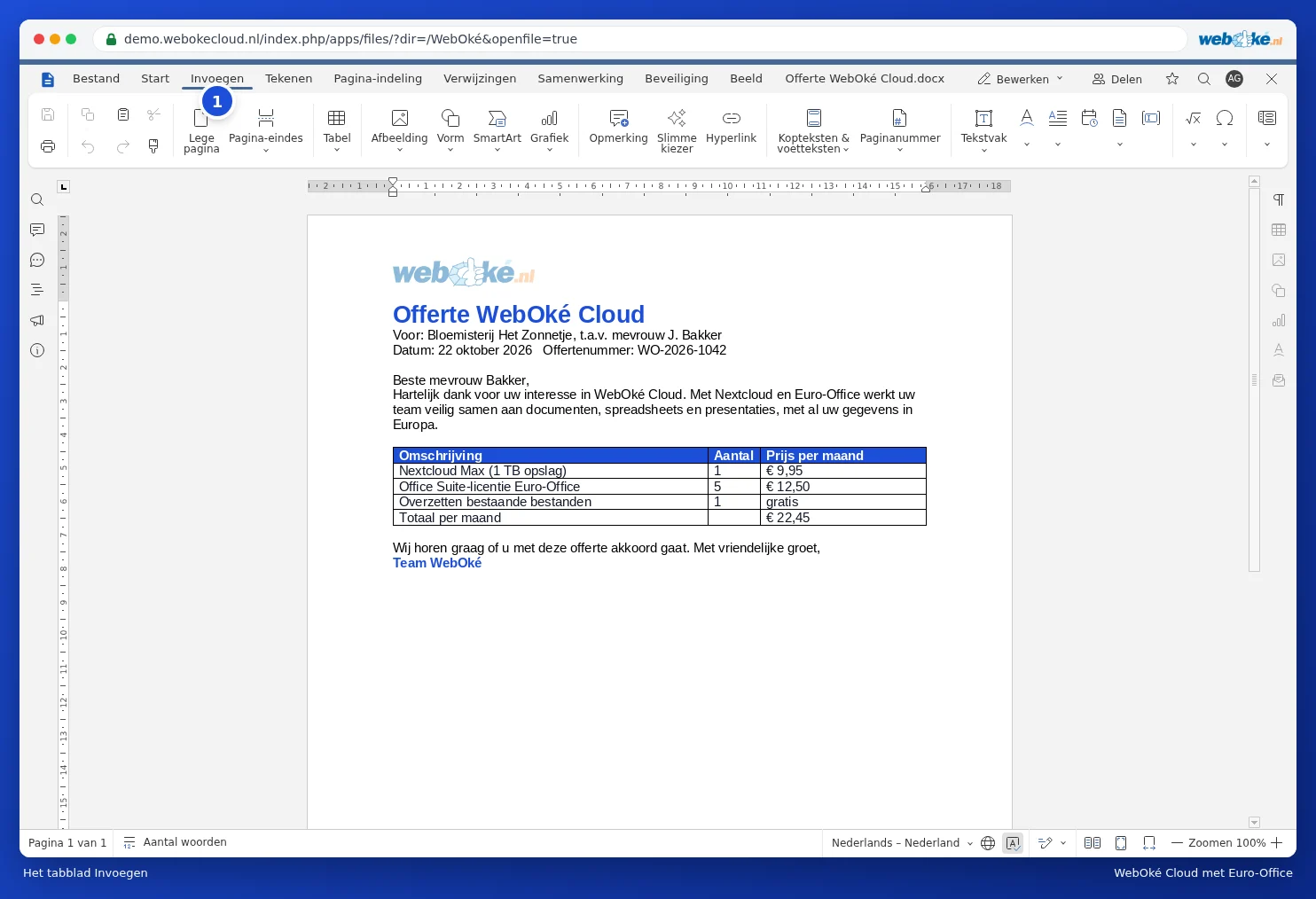
The Insert tab in Euro-Office
The Insert tab

On Layout, you set the margins, page orientation, columns and page breaks.
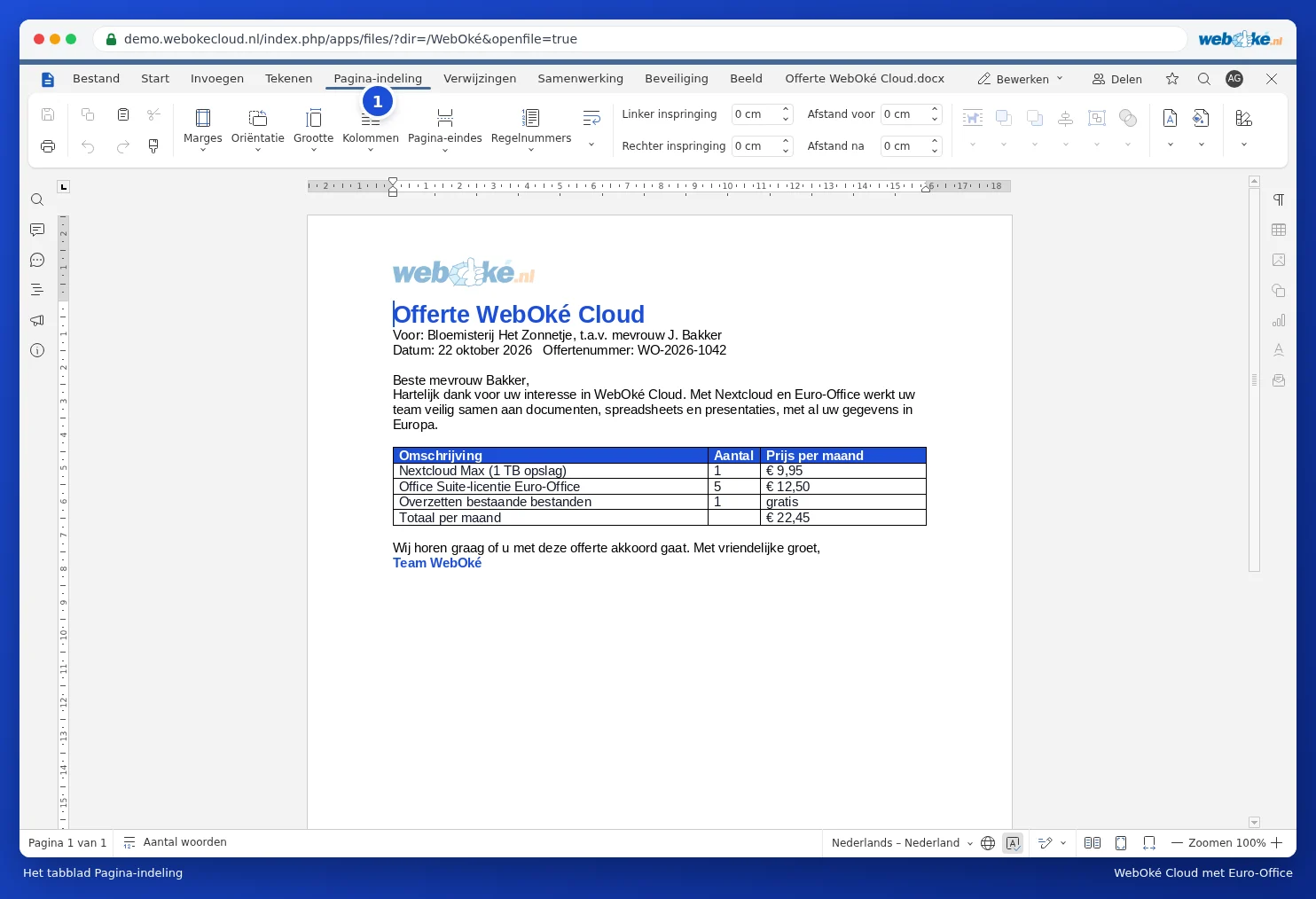
The Layout tab in Euro-Office
The Layout tab

On Collaboration, you'll find comments, track changes, document comparison and version history.

The Collaboration tab in Euro-Office
The Collaboration tab

The spreadsheet and presentation editors have the same layout, with tabs suited to that type of file, such as Formula and Data in a spreadsheet.

One moment…

Set up your domains

For each domain, arrange the nameservers, the link to your hosting and who becomes the owner.

Loading your domains…