
Chapter 16 · 16.20
A survey with the answers straight into a spreadsheet
Watch it in a short video
Available in packages with Office. Forms is included in your WebOké Nextcloud as soon as your package has at least one Office Suite licence. See Which apps are included in my package?.
The question: we use Forms for sign-ups. Can I get the answers into a spreadsheet, so I can sort them, count them and share them with the board?
Yes. You can save the answers as a one-off file, or link the form to a spreadsheet in your Nextcloud that updates automatically with every new answer.
Linking the answers to a spreadsheet
- Open the form in Forms and click Answers at the top.
- Click Create spreadsheet.
- The Choose spreadsheet location window opens. Choose the folder in your Nextcloud where the spreadsheet should go. Use New to create a new folder first.
- Click Create XLSX (for Excel), Create ODS or Create CSV.

The spreadsheet is now linked to the form. Every time someone fills in the form, a new row is added. Open the file in Files. If you have your own Office licence, it opens in Euro-Office. You can read how to sort, filter and count there in the Euro-Office manual.
Saving or downloading a one-off copy
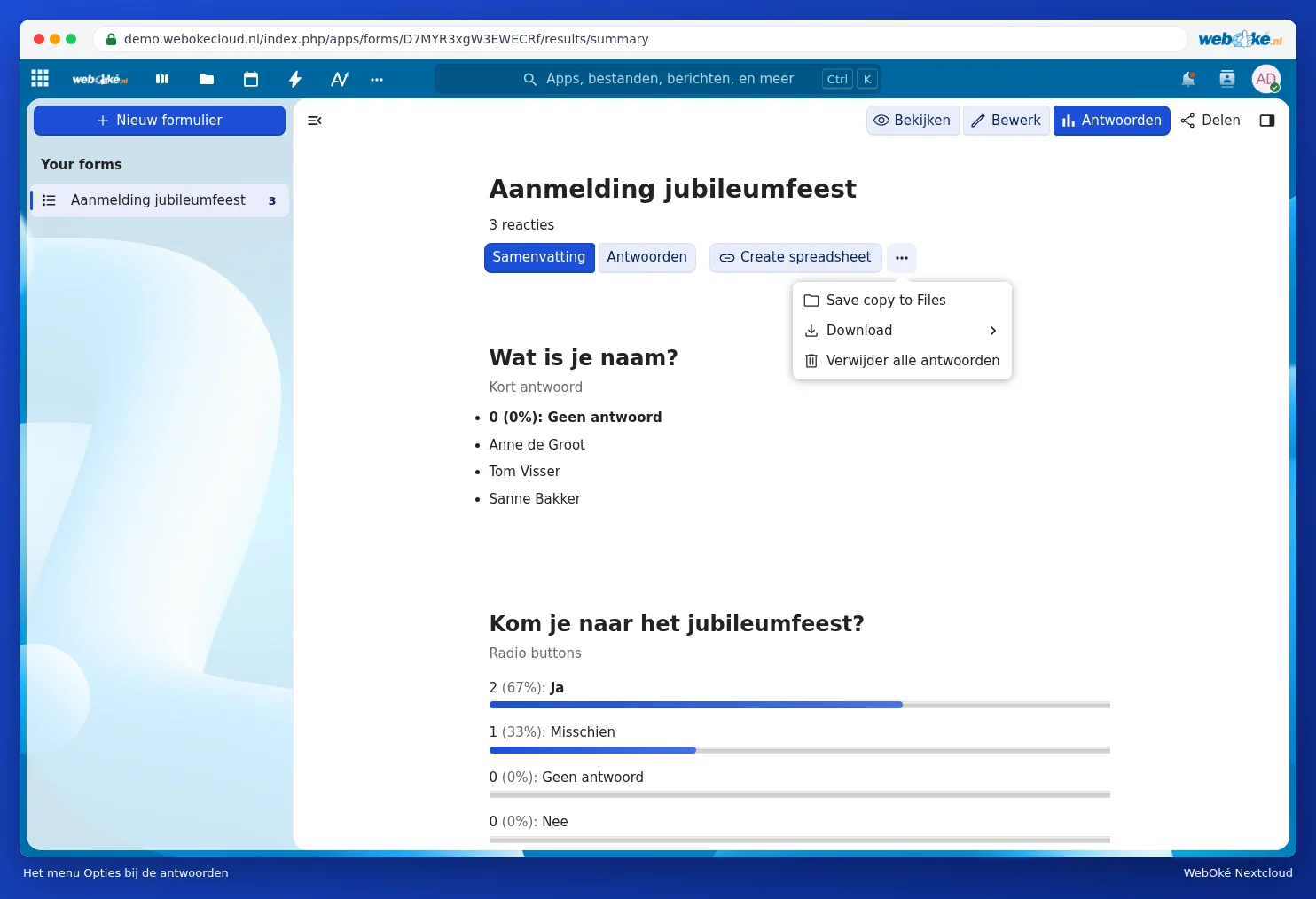
If you just want a snapshot, click the three dots next to Create spreadsheet. Use Save copy to Files to put a copy in your Nextcloud, or Download to get the answers as a file on your computer. Delete all responses deletes all submissions; you can't undo this.
Sharing the spreadsheet with others
Share the spreadsheet with the board via Files (see Sharing with a user from your own Nextcloud). Give only read access if they shouldn't change anything. Add anyone who needs to see or edit the form itself in the Share sidebar of the form.
Good to know
- Don't adjust the columns with answers in the linked spreadsheet; Forms keeps writing new rows into them. If you want to calculate or make charts, do that on a second tab (for XLSX or ODS).
- If you delete an answer in Forms, check the spreadsheet too.
- Does the form contain personal data? Then only share the spreadsheet with those who need it, and clean it up once the event is over.
- You can read about creating and sharing forms in Creating and sharing forms and surveys, and viewing the responses.