
Chapter 2 · 2.1
Logging in for the first time
Watch it in a short video
Your WebOké Nextcloud is ready. In this article, you'll log in for the first time. That takes three steps: opening the address, entering your username and password, and entering the code from your email.
What do you need?
- The address of your Nextcloud. This is, for example, jouwnaam.webokecloud.nl, or a custom address such as cloud.jouwbedrijf.nl. With Nextcloud Free, the address is free.webokecloud.nl.
- Your username and password. If you ordered the package yourself, you chose these when ordering. If someone else created an account for you, you'll get them from that person: the administrator of the package.
- Access to your email. When logging in, you'll receive a code by email.
Are you the owner of the package? Then you can also log in to My WebOké, go to My Products and open your Nextcloud package. The Open Nextcloud (1) button takes you straight to the right address.

Step 1: username and password
- Open your browser and type the address of your Nextcloud into the address bar.
- Enter your username or email address (1).
- Enter your password (2). Use the eye icon on the right of the field to see what you're typing.
- Click Login (3).
The Remember me checkbox is ticked by default: this keeps you logged in on this computer for longer. If you're using a computer that isn't yours, untick it. You can read more about Log in with a device in Setting up an authenticator app and saving backup codes, and about Forgot password? in Changing or forgetting your password.

Step 2: the code from your email
After the password, your Nextcloud asks for a six-digit code. This code has just been sent to your email address. This way, your Nextcloud knows for sure it's really you, even if someone else were to know your password.
- Open your mailbox. You'll receive an email from WebOké Nextcloud with the subject WebOké Two-Factor Authenticatie Code.
- Type the six digits into the code field (1). On your phone, you can often tap the code directly above the keyboard.
- As soon as the six digits are entered, it usually continues automatically. If nothing happens, click Verify (2).
Above the code field, you'll see which address the code was sent to. Part of the address is hidden with asterisks, so a passer-by can't read it.
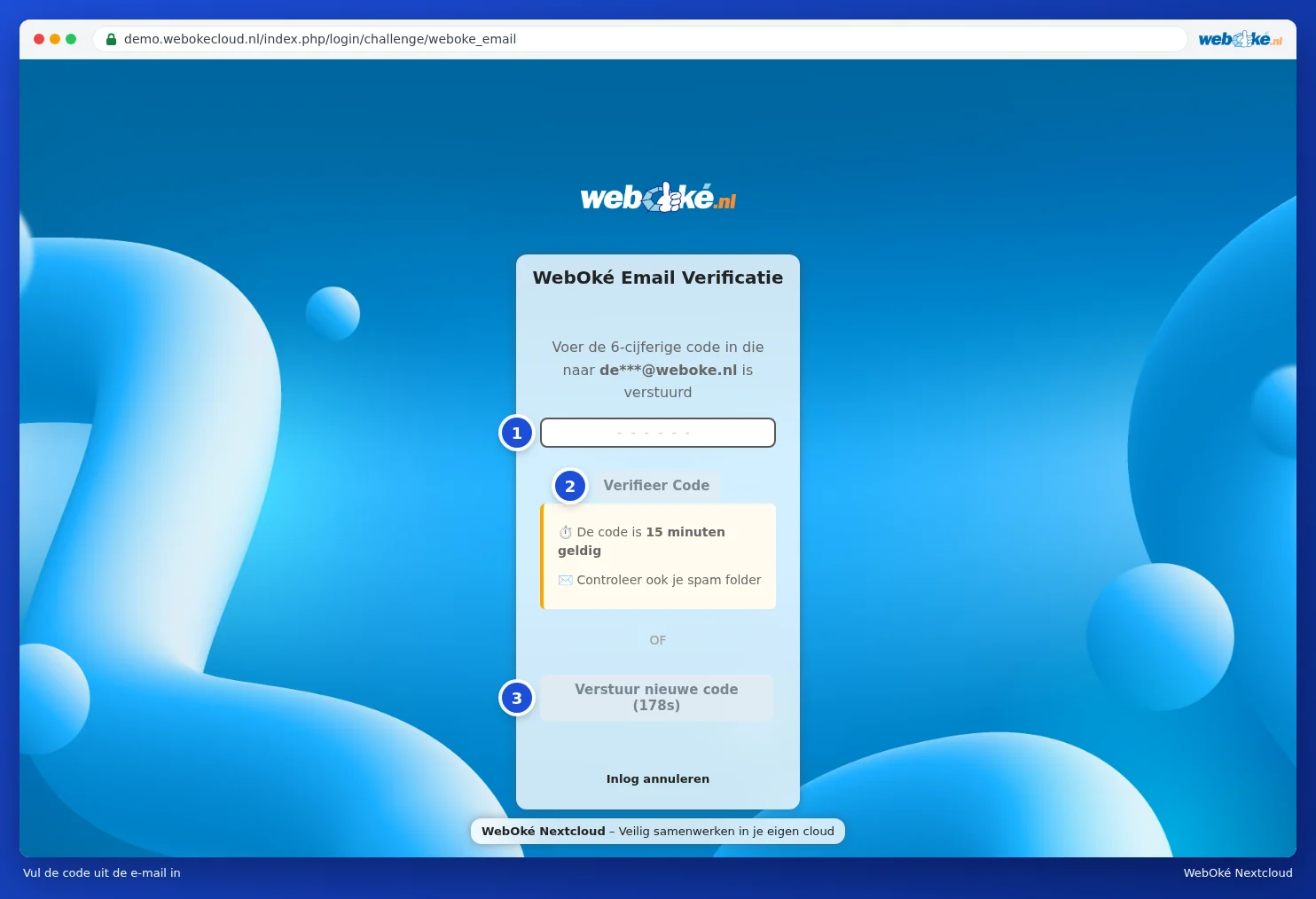
Reading your email on the same device? Then you can also click the link in the email. You'll then be logged in straight away, without having to retype the code.
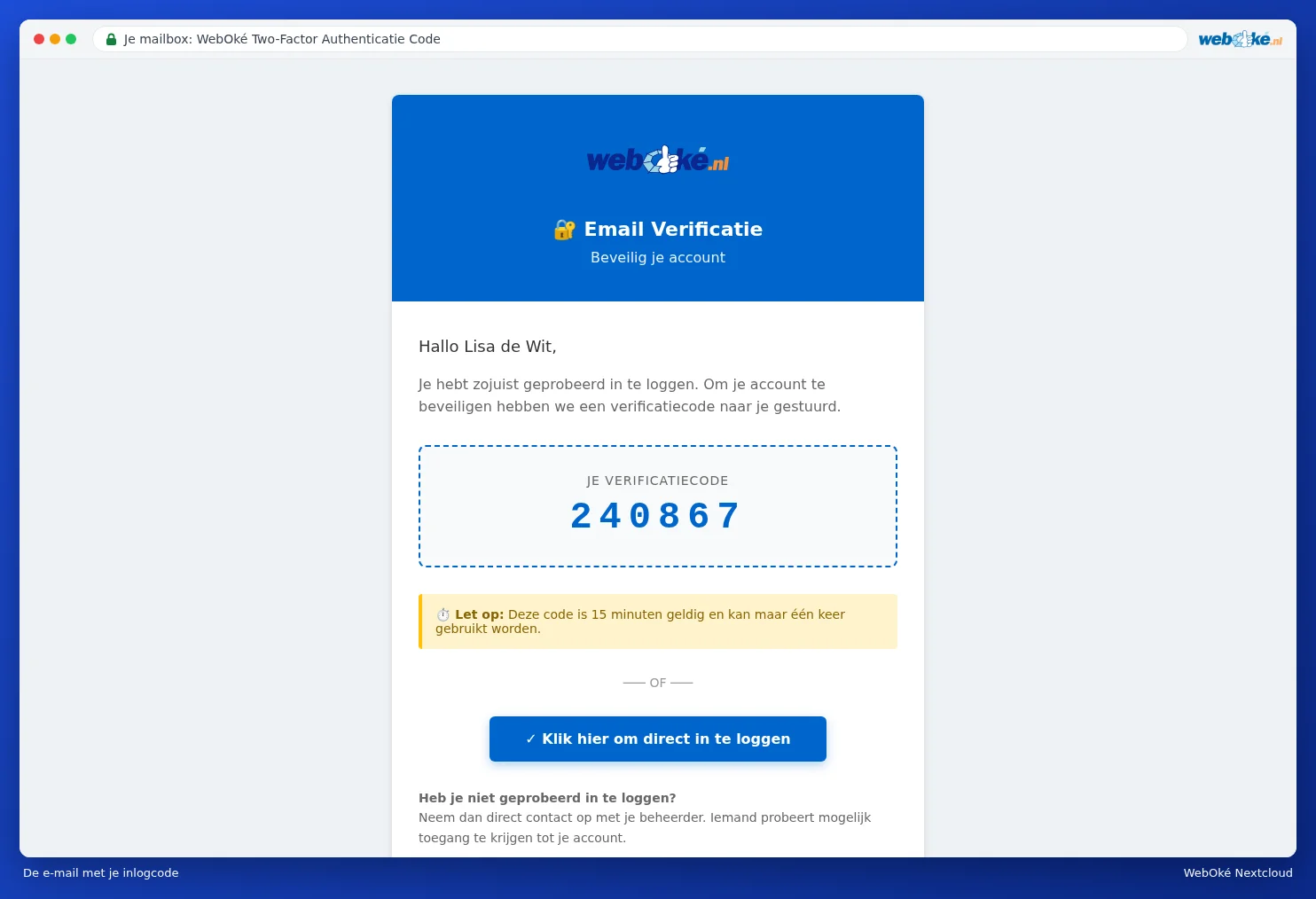
Haven't received an email? Check your junk mail folder. After three minutes, you can have a new code sent using Send new code (3); the button counts down the seconds. If you'd rather not continue, click Cancel login. You can read everything about the code, and what to do if it doesn't arrive, in The email login code: how it works and what to do if the email doesn't arrive.
Tip: Find the email step a hassle every time you log in? Then set up an authenticator app as well. From then on, you can also type in a code from your phone. See Setting up an authenticator app and saving backup codes.
Step 3: welcome!
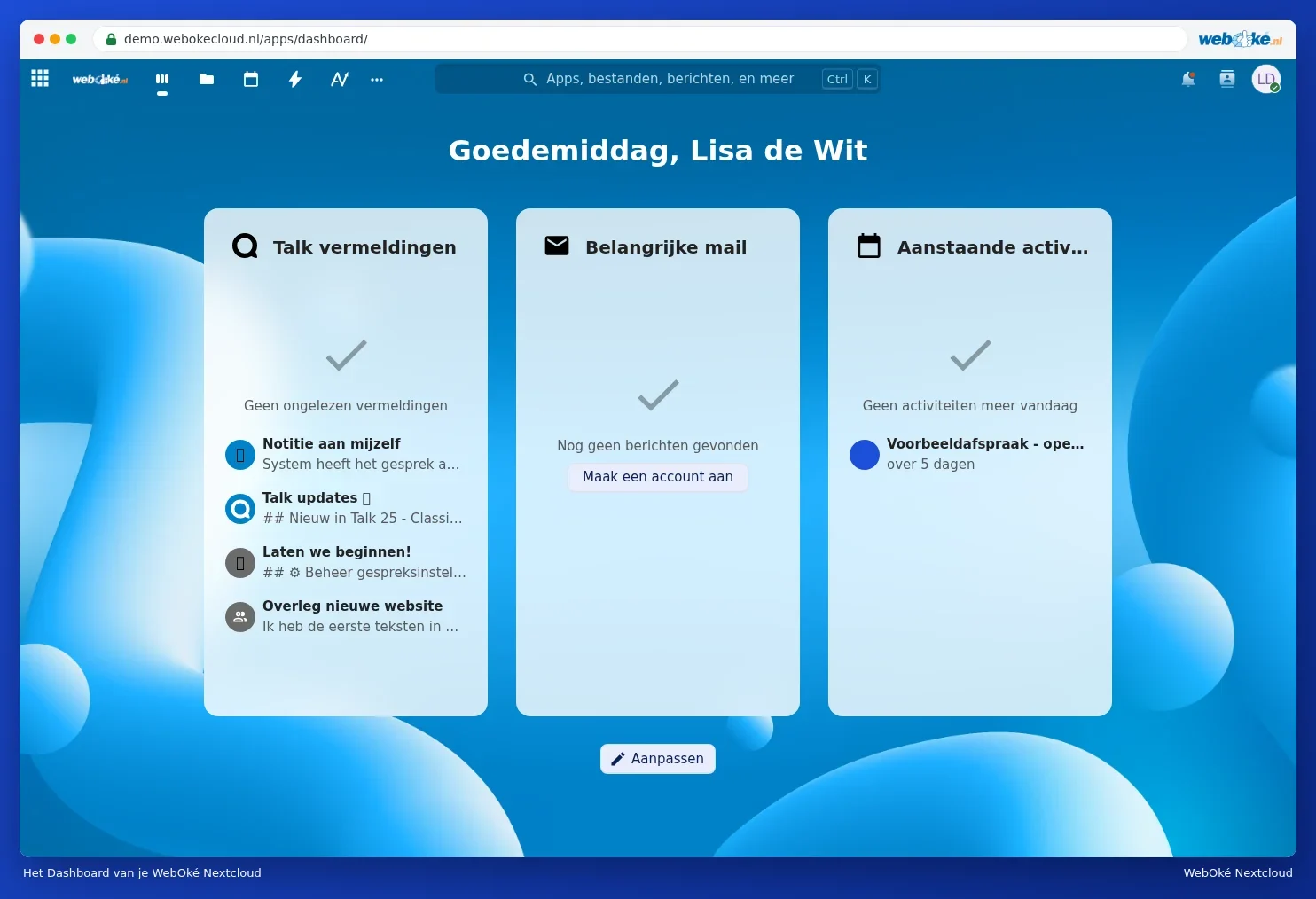
You're in. You'll land on the Dashboard. The first time, a welcome window from Nextcloud appears. This is (still) in English. Choose Yes (2) for a short tour of the buttons, or No (1) to dive straight in yourself. You can also close the window with the cross.

After that, you'll see your Dashboard. You can read what all the buttons do in A tour of the screen.
Staying logged in
With Remember me ticked, you'll stay logged in on that computer for a longer period, even if you close the browser. This is handy on your own computer. If you're working on someone else's computer, always log out: click your profile picture and choose Log out.
Having trouble?
| What do you see? | What do you do? |
|---|---|
| Incorrect login or password. | Check for capital letters and whether Caps Lock is on. Forgotten your password? See Changing or forgetting your password. |
| No email with the code arrives | Check your junk mail folder and wait a few minutes. See The email login code: how it works and what to do if the email doesn't arrive. |
| A message about too many or invalid login attempts | You'll be slowed down briefly. See Multiple invalid login attempts: why you're being slowed down and how to fix it. |
| The page doesn't load or your browser warns about an insecure connection | Check the address. See Nextcloud is unreachable or slow: check this first and Certificate warning or insecure connection. |