
Chapter 9 · 9.4
Subscribing to an external calendar and importing a calendar
Want to see your sports club's matches, your school timetable or public holidays in your calendar? Then subscribe to that calendar. Want to bring over your old calendar from Google, iCloud or Outlook? Then import it. The difference:
| Subscribe | Import | |
|---|---|---|
| What happens? | Your Nextcloud fetches the calendar from the address again and again. | The appointments are copied once into a calendar in your Nextcloud. |
| Changes from the source | Come through automatically (not instantly, but after a while) | Do not come through |
| Edit appointments yourself | No, read-only | Yes |
| What do you need? | An address (link) that ends in .ics or starts with webcal:// | An .ics file |
The plus icon next to My calendars
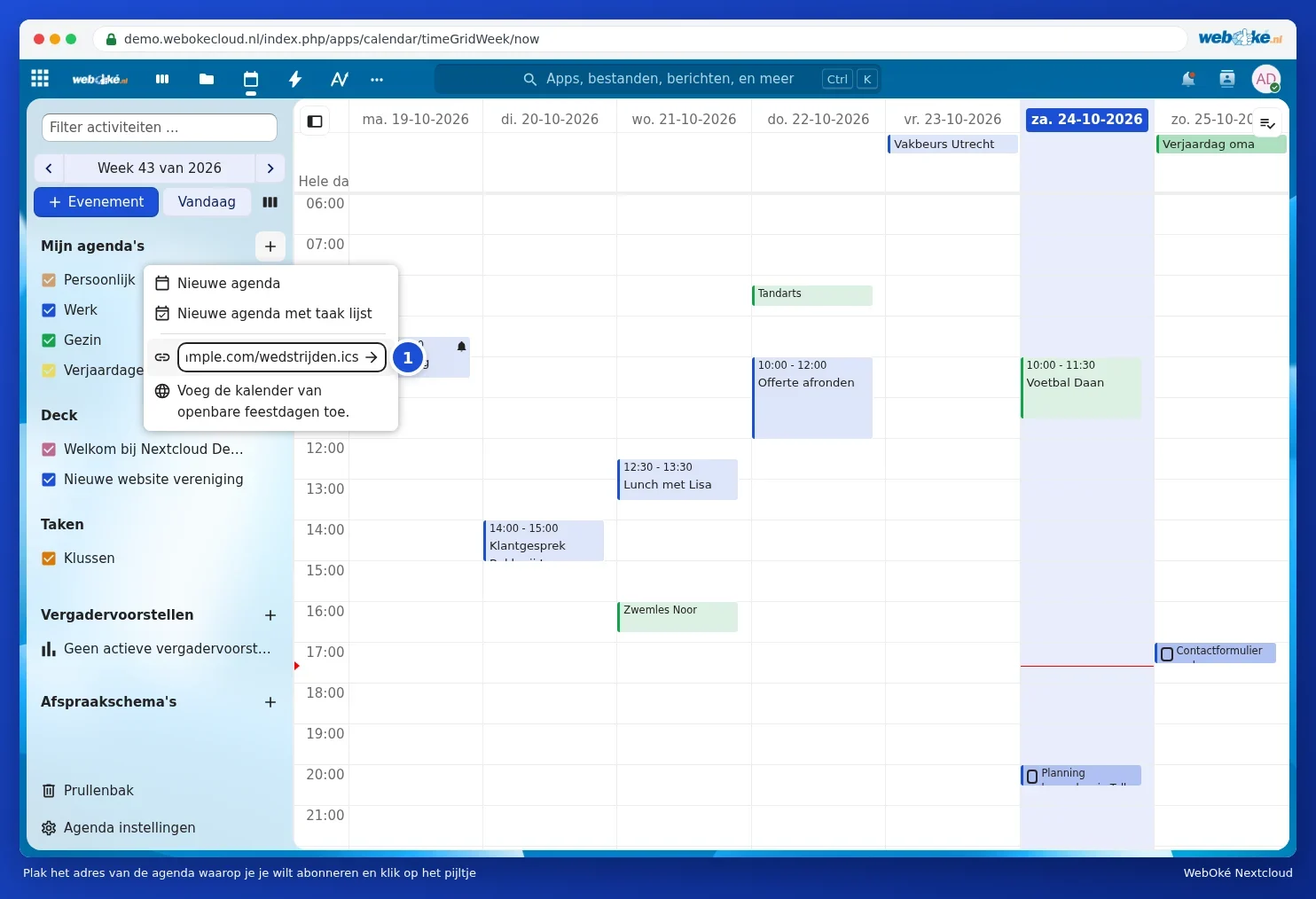
Click the plus icon next to My calendars. You'll see:

- New calendar (1): an empty calendar for appointments.
- New calendar with task list (2): a calendar that can also hold tasks (see Tasks: lists, deadlines and subtasks).
- New subscription from link (read-only) (3): subscribe to someone else's calendar.
- Add public holiday calendar. (4): choose a country and you'll have all its public holidays in your calendar. These calendars come from Thunderbird.
Subscribing to a calendar via a link
- Copy the calendar's address. On your club's or school's website, this is often called "add calendar", "iCal", "webcal" or "subscribe".
- Click the plus icon next to My calendars, choose New subscription from link (read-only) and paste the address into the field that appears.
- Click the arrow or press Enter. The calendar appears in your list.
A subscription isn't updated instantly: your Nextcloud fetches the calendar again at set intervals. So you might not see a change from your club until a few hours later.
Subscribing to your Google Calendar
Want to keep using your Google Calendar for now while also seeing it in your Nextcloud? In Google Calendar, open the calendar's Settings and copy the Secret address in iCal format. Paste that as a subscription. This way you'll see your Google appointments in your Nextcloud, read-only. Want to switch over completely? Then import instead, or use the WebOké Import Tool (Transferring Google Drive, Photos, Calendar and Contacts with the WebOké Import Tool).
Importing a calendar
- Make sure you have an .ics file. From Google: Settings, Import & export, Export; you'll get a zip file containing an .ics file for each calendar. Unzip the zip file first.
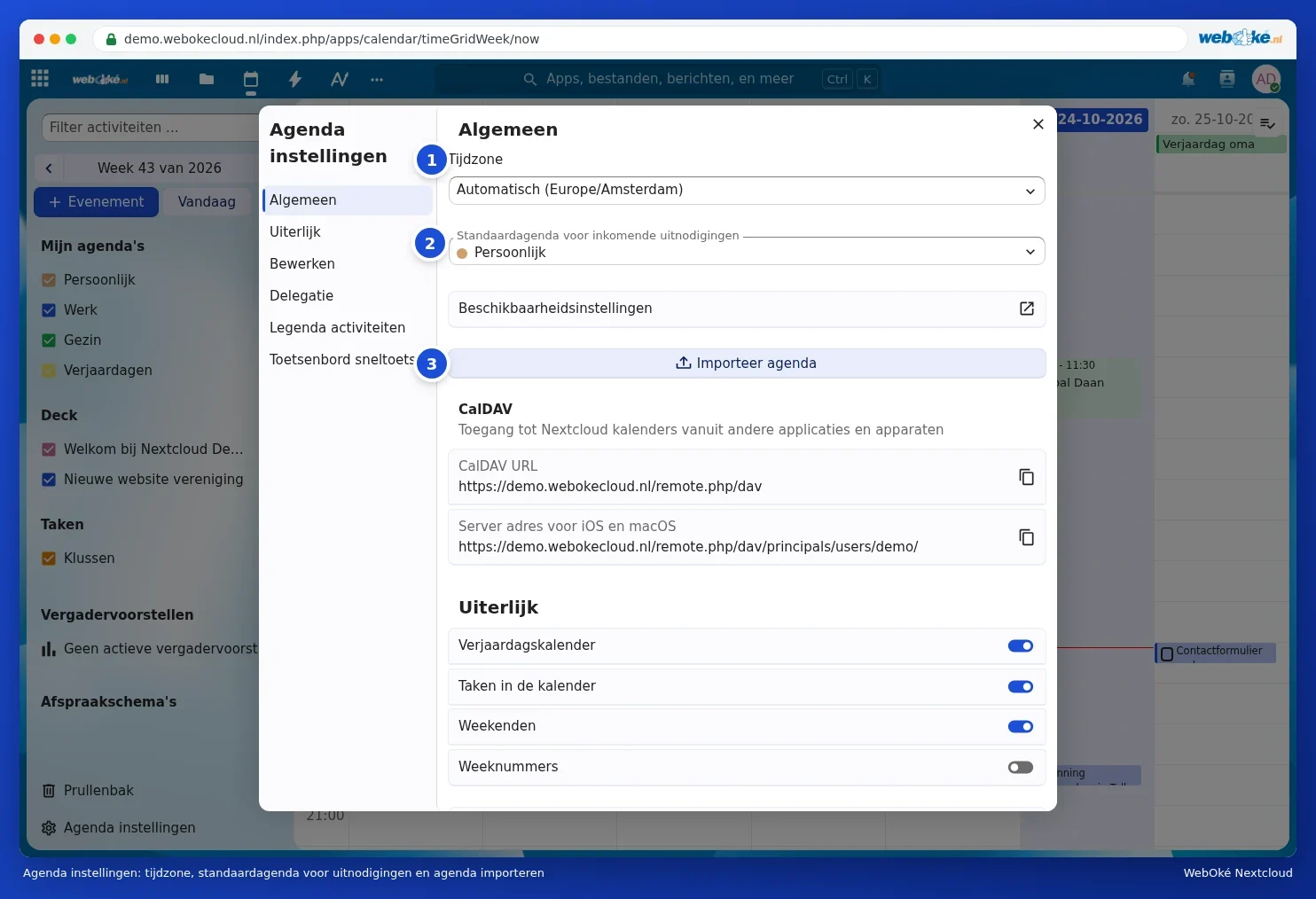
- In your Nextcloud calendar, click Calendar settings at the bottom left.
- Click Import calendar (3) and choose the .ics file.
- Choose which calendar the appointments should go into. You can also have a new calendar created.
- In the window, click Import calendar. Once it's done, you'll see the appointments in your calendar.
Please note: don't import the same file twice into the same calendar. Appointments with the same identifier are skipped or updated, but a file from a different program can still cause duplicates. Not sure? Import into a new, empty calendar instead; you can always delete it if it doesn't turn out right.
More on switching over with your calendar and contacts at the same time: Moving your calendar and contacts from Google, iCloud or Outlook (ics and vCard).