
Chapter 16 · 16.22
Guests in a Talk meeting with a waiting room (lobby)
Watch it in a short video
Available in packages with Office. Talk is included in your WebOké Nextcloud as soon as your package has at least one Office Suite licence. See Which apps are included in my package?.
The question: I'm organising an online meeting with people from outside, for example a members' evening or a conversation with a client. I don't want guests to already be in the meeting before I arrive. Is that possible?
Yes. With the lobby, guests and regular participants wait in a waiting room until a moderator opens the meeting. Moderators (you and anyone you make a moderator) can always get in.
Step 1: turn on guest access
Open the conversation, choose Conversation settings via the three dots and under Administration, turn on the switch next to Guest access. Copy the link. See Inviting guests via a link (without an account).
Step 2: turn on the lobby
- In the Conversation settings, go to Meeting.
- Turn on Enable lobby, restrict chat to moderators (1).
- Optionally, fill in a Meeting start time (2). Those waiting will then see what time it starts.

Tip: if you're creating a new conversation, choose Webinar as the conversation type. Then the lobby is turned on straight away.
What the guest sees
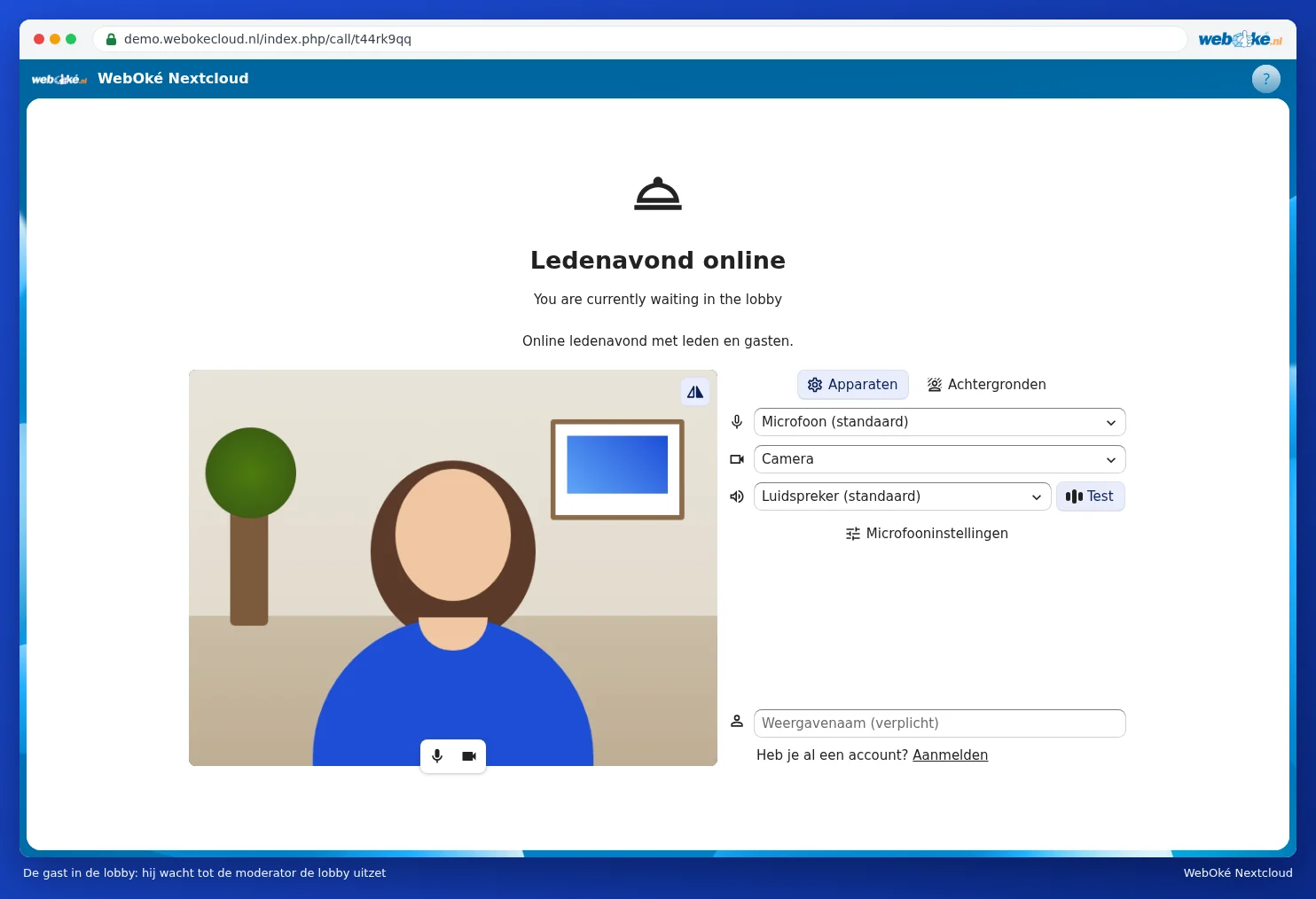
The guest opens the link and sees that they're waiting in the lobby. They can already fill in their name and test their camera and microphone. Chatting and calling aren't possible yet.
Step 3: open the meeting
As moderator, you see who's waiting in the lobby in the sidebar (2). You have two options:
- Click Disable lobby (1) to let everyone in at the same time.
- Let one person in with the button next to their name (3). The others keep waiting.

Please note: regular participants with an account also wait in the lobby. If colleagues need to go straight in, make them a moderator via the three dots after their name.
After the meeting
- Turn off guest access or delete the conversation so the link stops working.
- Want to keep the list of participants? During the call, choose Download attendance list via the three dots (see Video calling and meetings: camera, microphone, background and raising your hand).
- Recording conversations isn't possible in your WebOké Nextcloud.