
Chapter 15 · 15.18
One page in landscape within a portrait document
A wide table or planner won't fit on a portrait page, but the rest of your document needs to stay portrait. You can solve this with sections: each section can have its own orientation.
Step by step
- Place the cursor at the end of the page before the page that needs to become landscape.
- Go to Layout, Breaks, Insert section break and choose Next page. A new page starts in a new section.
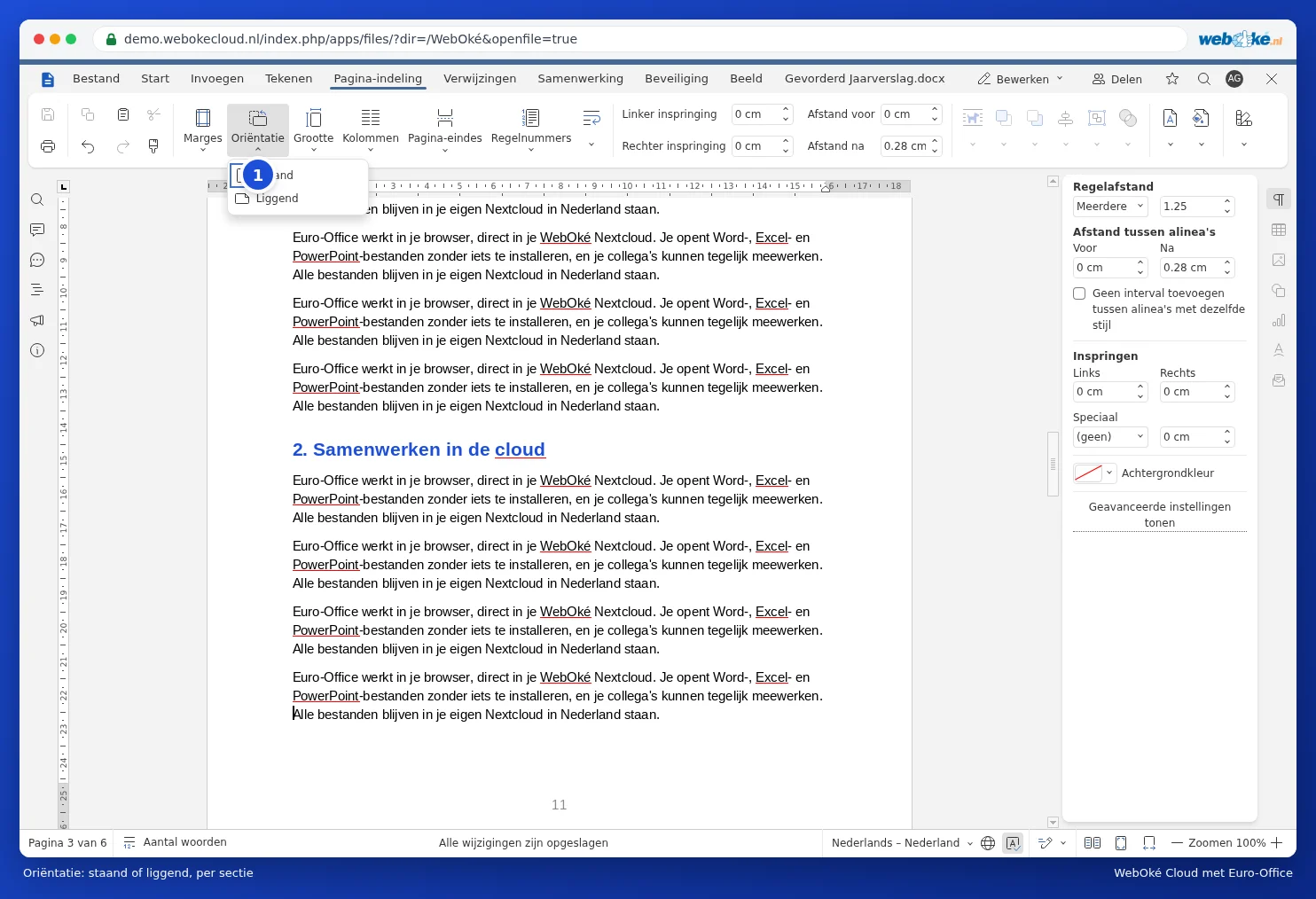
- Click Orientation (1) and choose Landscape. From here on, everything is landscape.
- Place the cursor at the end of the landscape page and insert another Next page section break.
- Place the cursor on the page after that and choose Orientation, Portrait.
Pitfalls
- Check the page numbers after the landscape page. If they don't flow correctly, open the footer and check under Page numbering whether Continue from previous section is selected.
- A landscape page has a different width, so the header and footer may look different. If you want to change that, turn off Link to previous (see Starting page numbers from page 3 only).
- There's no "landscape from here" button like in some versions of Word. The two section breaks are the way to do it.
- Do you see a blank page? Then there's a regular page break next to the section break. See A blank page at the end that won't go away.