
Chapter 15 · 15.29
Rotating, deleting or merging PDF pages
A scanned attachment is upside down, there's a blank page in between, or you need to send three PDFs together as one file to the council or your mortgage adviser. You can do a lot of this in Euro-Office.
Rotating or deleting a page
- Open the PDF and choose Edit in the top right.
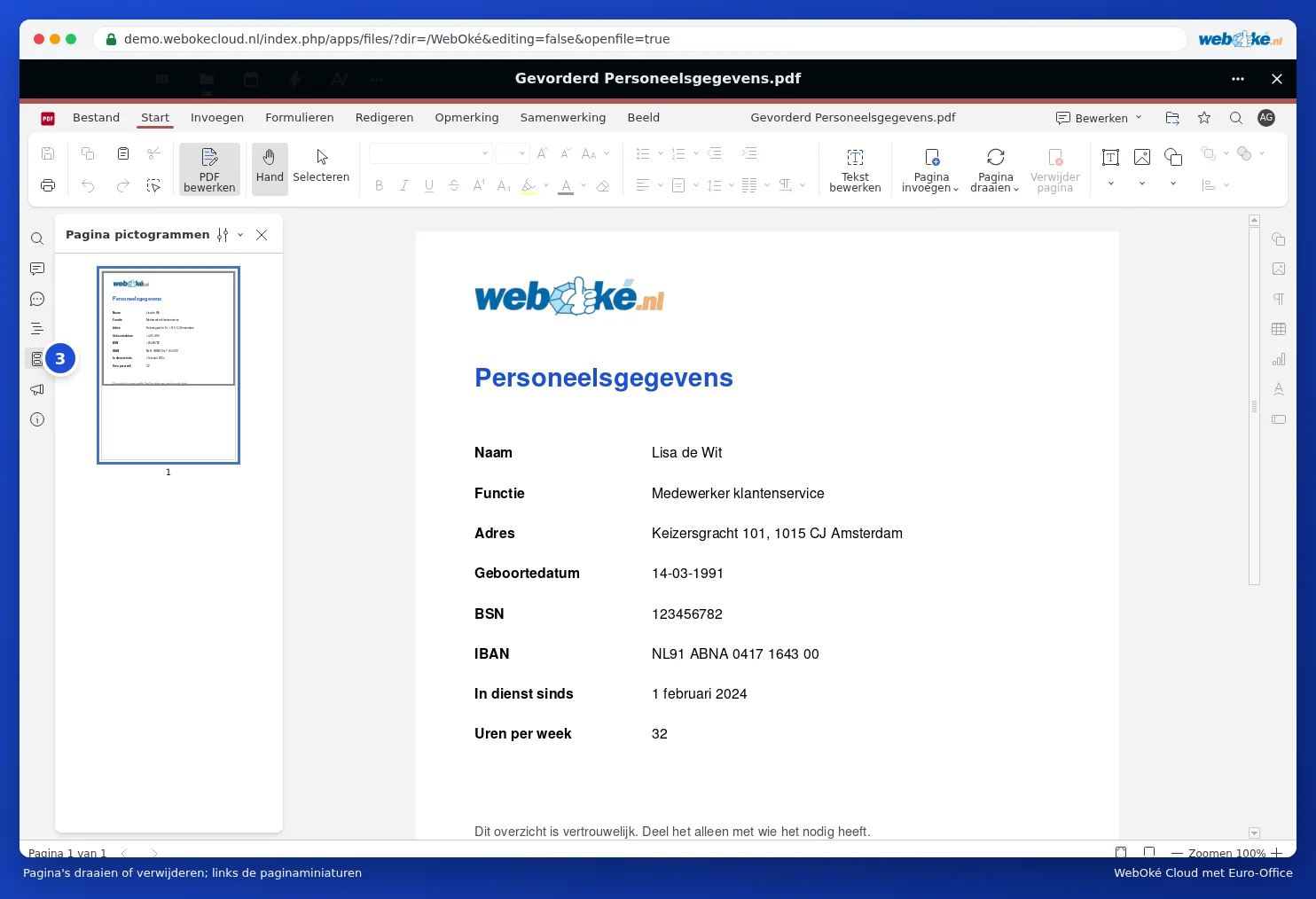
- Open the page thumbnails (3) on the left using the Page thumbnails button and click on the page. Use Ctrl or Shift to select more.
- On the Home tab, click Rotate Page or Delete page. If you right-click a thumbnail, you'll also find Delete page, Rotate left and Rotate right there.
- To change the order, drag a thumbnail to another spot.
Merging PDFs
Euro-Office doesn't have a button for merging files. Here's how to do it anyway:
- Open the second PDF in edit mode, select the thumbnails of the pages you want on the left and copy them with Ctrl + C.
- Open the first PDF in edit mode, click the thumbnail after which the pages should go and paste with Ctrl + V.
- Save the result under a new name via File, Save copy as.
Pitfalls
- Can't paste pages into your PDF, for example with a protected PDF? Print the PDFs together into one PDF from your computer instead, or use the merge function in your computer's PDF program.
- With very large scans (lots of pages with photos), things can get slow. Work with smaller sections instead.
- PDF forms with fillable fields: after merging, the fields don't always work anymore. Fill in the form first.
Read more about editing PDFs in Editing a PDF.